How to Remove Objects from Photos with AI Prompts | EzEditor
Learn how to seamlessly remove unwanted objects, text, and blemishes from your photos in seconds using simple text prompts and our professional AI photo editor.
We have all experienced the frustration of the "almost perfect" photograph. You spend twenty minutes setting up the perfect flat-lay for your e-commerce store, or you finally capture a professional, well-lit headshot for your LinkedIn profile. The lighting is flawless, the framing is exact, and the focus is sharp.
But when you review the image on a larger screen, disaster strikes. There is a distracting coffee cup left on the edge of the desk. There is a noticeable ketchup stain on your shirt, a stray lint roller on the couch, or an unsightly scratch on the product you are trying to sell.
A single, out-of-place item can completely hijack the visual hierarchy of an image. Instead of looking at your face or your product, the viewer’s eye is immediately drawn to the clutter.
In the past, fixing these localized distractions required expensive desktop software and an advanced understanding of manual pixel cloning. Today, utilizing an advanced ai photo editor, you can erase these daily annoyances simply by telling the AI what to do. In this comprehensive guide, we will explore why traditional manual retouching fails, how prompt-driven AI reconstructs complex textures, and how you can clean up your professional images in seconds using just your words.
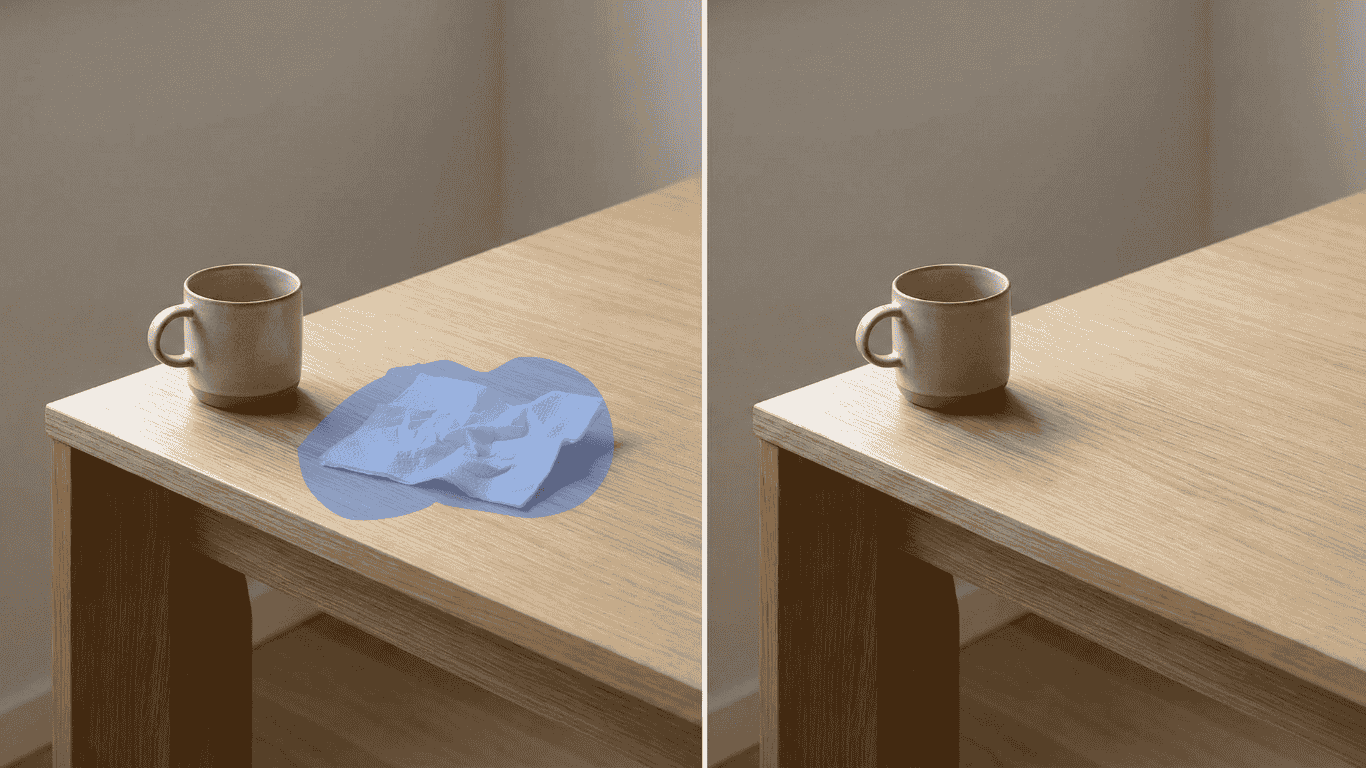
Why the Manual "Clone Stamp" Fails on Everyday Textures
Before the integration of Artificial Intelligence into our daily workflows, removing a coffee cup from a wooden table meant relying on manual legacy tools like the Clone Stamp or the Healing Brush.
These legacy tools operate on a very basic principle: they force you to manually copy pixels from "Point A" and paste them over "Point B." While this might work if you are trying to cover a tiny speck of dust on a plain white wall, it becomes a chaotic nightmare when dealing with the complexities of everyday photography.
The Texture & Lighting Problem: Imagine trying to manually paint over a smartphone resting on a marble countertop or a stain on a knitted sweater. If you simply copy and paste nearby pixels, you disrupt the natural flow of the marble veins or the directional weave of the fabric. The human eye is incredibly adept at spotting these unnatural, repeating patterns. Furthermore, if you copy a patch of wood grain from a bright area to cover an object in a shadow, the lighting will drastically clash.
To fix these issues naturally, we need technology that doesn't just copy reality, but actually understands the context of the image.
The Science of Prompt-Driven Inpainting: How AI Reconstructs Reality
When you use the Object Eraser tool in EzEditor, you are leveraging two cutting-edge AI technologies working in perfect harmony: Semantic Segmentation and Generative In-painting.
You don't need to manually brush over an object. The AI acts as your digital art restorer based entirely on your text input. Here is what happens in the milliseconds after you type "remove the coffee cup":
- AI Object Detection: The AI reads your prompt and scans the entire image. It understands the semantic difference between a cup, a desk, and a shadow. It automatically detects the exact boundaries of the object you mentioned.
- Contextual Boundary Analysis: Once the target is locked, the AI analyzes the surrounding environment. It looks at the texture of the table beneath the cup, the angle of the lighting, and the depth of field.
- Generative Filling: Finally, the AI generates entirely new, unique pixels that logically belong in that space. It effectively "hallucinates" the exact piece of wood grain or fabric that the object was hiding, matching the lighting gradients perfectly.
This level of intelligent reconstruction allows modern creators to achieve studio-level retouching without ever touching a manual brush tool.
Step-by-Step: Erasing Clutter with Just Your Words
While the underlying AI technology is incredibly complex, the user experience is as simple as sending a text message. Here is how to achieve flawless object removal using EzEditor's prompt-driven interface.
Step 1: Upload and Assess
Upload your high-resolution image to the editor. Before you type, take a moment to assess the distraction. Identify exactly what it is you want to remove so you can describe it accurately to the AI.
Step 2: Describe the Distraction (The Prompt)
Instead of meticulously trying to paint over an object with your mouse, you simply use the text input box. Use clear, natural language.
- For E-commerce: "Remove the price tag from the shoe."
- For Portraits: "Erase the coffee stain on the white shirt."
- For Interiors: "Remove the remote control from the table."
Crucial Tip: Be specific. If there are three cups on a table and you only want to remove one, specify its color or location (e.g., "Remove the red coffee cup on the left"). The AI relies on your accuracy to target the right pixels.
Step 3: Let the AI Execute
Hit generate. The AI will instantly locate the object, factor in its cast shadows and reflections, and seamlessly erase it from the image. Because the AI understands physics and lighting, it won't leave a "ghost" reflection behind like manual tools often do.
If the result isn't exactly what you envisioned, you can simply adjust your prompt and try again.
Real-World Applications: Who Needs Prompt-Based Erasers?
The ability to seamlessly remove small, distracting elements using simple text commands is a massive time-saver for several distinct industries.
1. E-Commerce and Product Photography
In the world of online retail, trust is built through visuals. A product photo that features a stray piece of tape, a scuff mark, or an accidental scratch on the surface can make the item look cheap. Product photographers use prompt-driven AI to instantly clean up macro shots. You can simply type "remove the scratch on the leather" and ensure your apparel and electronics look pristine, boosting your conversion rates.
2. Professional Headshots and Portraiture
You finally get a great natural smile in a photo, but you have a temporary acne breakout, or a piece of lint is stuck to your blazer. Using an AI text command allows you to say "remove the blemish on the cheek" without giving your face that unnatural, overly smoothed "plastic" look that older beauty filters create. The AI retains the natural pores and texture of your skin while simply removing the specific distraction you pointed out.
3. Real Estate and Interior Staging
Interior designers and real estate agents constantly battle clutter. You might take a gorgeous wide-angle shot of a living room, only to realize later that a tangled mess of router wires is visible in the corner. Instead of reshooting, agents can simply type "erase the wires on the floor" to digitally declutter a room, presenting a clean, aspirational space to potential home buyers.
Honest Retouching: The Limitations of AI
At EzEditor, we value transparency. We believe in providing a tool that works exceptionally well, while being honest about where current AI technology has its limits.
To get the absolute best results from your prompts, you should know when the AI might struggle:
- Ambiguous Prompts: The AI is smart, but it cannot read your mind. If your photo features a messy desk with a dozen items, and you simply type "clean the desk," the AI might remove things you wanted to keep. You must specify the exact object (e.g., "remove the crumpled paper").
- Complex Text Behind Objects: If a coffee cup is blocking a highly complex, stylized logo or a paragraph of text on a magazine cover, instructing the AI to remove the cup will force it to guess the missing letters. It cannot magically know what words were hidden behind the object.
- The "50% Rule": The AI needs background context to work. If the object you are trying to remove takes up more than 50% of the entire photograph, the AI doesn't have enough surrounding data to reference. The Object Eraser is designed for distractions and clutter, not for replacing the entire main subject of a photo.
No Watermarks, No Traps: A Better Way to Edit
We have all experienced the frustration of carefully editing a photo on a "free" website, only to hit the download button and be confronted with a massive, unremovable watermark covering the center of the image.
We built EzEditor to break this cycle. We do not believe in holding your hard work hostage.
When you use our editor, you can test the AI completely free, with no account required for your initial tries. If you find value in the tool and want to continue cleaning up your photography portfolio, creating a free account grants you a generous allocation of bonus credits. These credits allow you to download your fully edited, high-resolution photos without a single watermark.
There are no hidden monthly subscription traps. If you are a casual user, your free credits might be all you ever need. If you need more, simply purchase credits as you go.
Reclaim Your Focus with a Single Sentence
A great photograph is about drawing the viewer's eye to the subject that matters—whether that is the confident smile in your professional headshot, the sleek lines of a product you are selling, or the cozy atmosphere of a living room.
Do not let a forgotten coffee cup, a stray wire, or a temporary blemish steal the spotlight. By leveraging the advanced text-to-image capabilities of a modern ai photo editor, you can digitally declutter your life's moments just by asking.
Grab one of your "almost perfect" photos today, type in what you want to remove, and see just how easy it is to bring the focus back to where it belongs.